Current version v2.2.92· iPhone / iPad $2.99 one-time· Mac, Windows, Android and Linux versions are free
01 Choose a device
Download for all platforms
Get Shadowrocket for iPhone / iPad from the App Store for a one-time $2.99 purchase in the US store. Mac, Windows, Android and Linux versions are free, with installers available from this site. When downloading for another device, choose based on the device you will install on, not the device you are browsing with.
iPhone / iPad
$2.99 one-time. iPhone and iPad use the same App Store product page, and one purchase is shared by the same Apple ID.
iOS / iPadOS 13.0 or later; check the App Store page for system requirements.
On the product page, first verify the developer and app ID. If it says the app is unavailable in your region, check the store linked to your account. Do not choose another listing with the same name from search results.
Not sure which to choose? Open About This Mac from the Apple menu. If Chip shows Apple silicon, choose that version; if Processor shows Intel, choose the Intel version. After downloading and installing, open the app from Applications rather than running it from the disk image.
Windows
Free. This site provides a 64-bit .exe installer for x64 Windows.
Check your processor architecture and system type under Settings → System → About → System type.
Open the installer after the download completes. If Windows says the app is not compatible with this PC, check the system type first. This compatibility message is different from a SmartScreen warning.
Free. The arm64.apk is for Android phones and tablets that support arm64-v8a, used by most mainstream devices in recent years.
If you see an incompatibility message, check which app architectures the target device supports.
After downloading in a browser, open the file from that browser's downloads. If you open it from a file manager, the system may list the file manager as the installation source. Before granting permission, check which app the system names.
Free. Use .deb for Debian / Ubuntu and .rpm for Fedora / openSUSE. Other compatible distributions can use AppImage.
Architecture: x86_64; Debian-based distributions use amd64 as the package architecture name.
If you normally install software with your distribution's package manager, choose the matching package format. AppImage can run directly, but you must first grant the file execute permission.
Installers distributed on this site are not code-signed. The first time you open one, your system may be unable to verify its source or may ask you to authorize the installation. First confirm that the download came from this site's /dl/shadowrocket/ directory, then follow the guidance for your device and the specific prompt. Install the iPhone / iPad app through the App Store; the steps below do not apply.
Platform
Prompt or situation
Steps
Windows
SmartScreen says “Windows protected your PC”
Confirm that you are opening the corresponding 64-bit installer from this site. If your device policy allows it, choose More info → Run anyway in the prompt. If the prompt explicitly reports malware or Windows does not offer an option to continue, stop the installation and do not disable protection.
Mac
Developer cannot be verified
Open the .dmg file that matches your chip and drag Shadowrocket to Applications, then try opening it. After dismissing the prompt, go to System Settings → Privacy & Security. Under Security, select Open Anyway and follow the system prompts. Do this only for an app whose source you have verified.
Mac
The system says the app “is damaged”
First download the installer for your chip again and copy the app again to rule out an incomplete download. If the same message persists and you have confirmed it is not a malware warning from the system, run this command in Terminal, then open the app from Applications. The command removes extended attributes from the app, including the download quarantine flag.
xattr -cr /Applications/Shadowrocket.app
Android
This source is not allowed to install apps
Start the installation from the browser used to download the file. Follow the prompt to open Install unknown apps and enable Allow from this source for that browser (some devices show Allow installing unknown apps). Return to continue the installation; you can revoke this permission afterward.
Linux
Install DEB / RPM or run AppImage
First open the download directory in a terminal and replace the example filename in each command with the actual filename. For Debian / Ubuntu:
sudo apt install ./filename.deb
Fedora uses dnf, and openSUSE uses zypper; both can install a local RPM from the current directory:
sudo dnf install ./filename.rpmsudo zypper install ./filename.rpm
For AppImage, grant execute permission first, then launch it as the current user:
chmod +x ./filename.AppImage./filename.AppImage
03 iPhone / iPad
App Store and account region
This section applies to iPhone / iPad only. Shadowrocket is not available in the mainland China App Store. The country or region set for your Apple ID under Media & Purchases determines which store you see. Device language, your current location and the storefront marker in a web address do not replace this account setting.
Check the purchase account. Open Settings, tap the Apple ID at the top (where your name appears), then go to Media & Purchases → View Account. If the system asks you to verify your identity, complete verification and continue.
Check the account's store region. Open Country/Region and use the region shown there. Seeing a product page for the US store on the web does not mean the account currently signed in can also buy from that store.
Only review the change option if needed. On the same page, select Change Country or Region and follow the system prompts. Your balance, active subscriptions, Family Sharing status or payment method may affect the process; follow the conditions shown in your account.
If the product page opens but you cannot get the app, first check the account used for Media & Purchases and its store region, then review the system requirements on the store page. If the device you used to browse differs from the one you plan to install on, make a final check on the iPhone or iPad you will use.
Open the same product page to verify
On the store page, check availability and system requirements, then verify the three details in the next section.
Before installation, verify the store listing or installer source. After installation, use the interface references to locate controls. A matching name or similar interface is not a substitute for confirming the download source.
Check these three details in the App Store
Developer: The product page lists Shadow Launch Technology Limited. Check the developer in the app details, not just the search result title.
Icon: Compare it with the icon in this section: the official icon is a blue-purple outlined rocket on a white background. Use the icon as a visual aid, and also verify the developer and app ID.
App ID: The product address linked from this page ends in id932747118; the number 932747118 is the app ID. Do not mistake another listing with the same name and a free price for the app linked here.
There are two ways to get Shadowrocket: the iPhone / iPad app costs $2.99 as a one-time App Store purchase; Mac, Windows, Android and Linux versions are free and available through the corresponding platform buttons on this page at /dl/shadowrocket/. Desktop and Android installers are not identified through App Store search results. Do not use installers from unknown sources or installers that have been modified.
First launch on iPhone
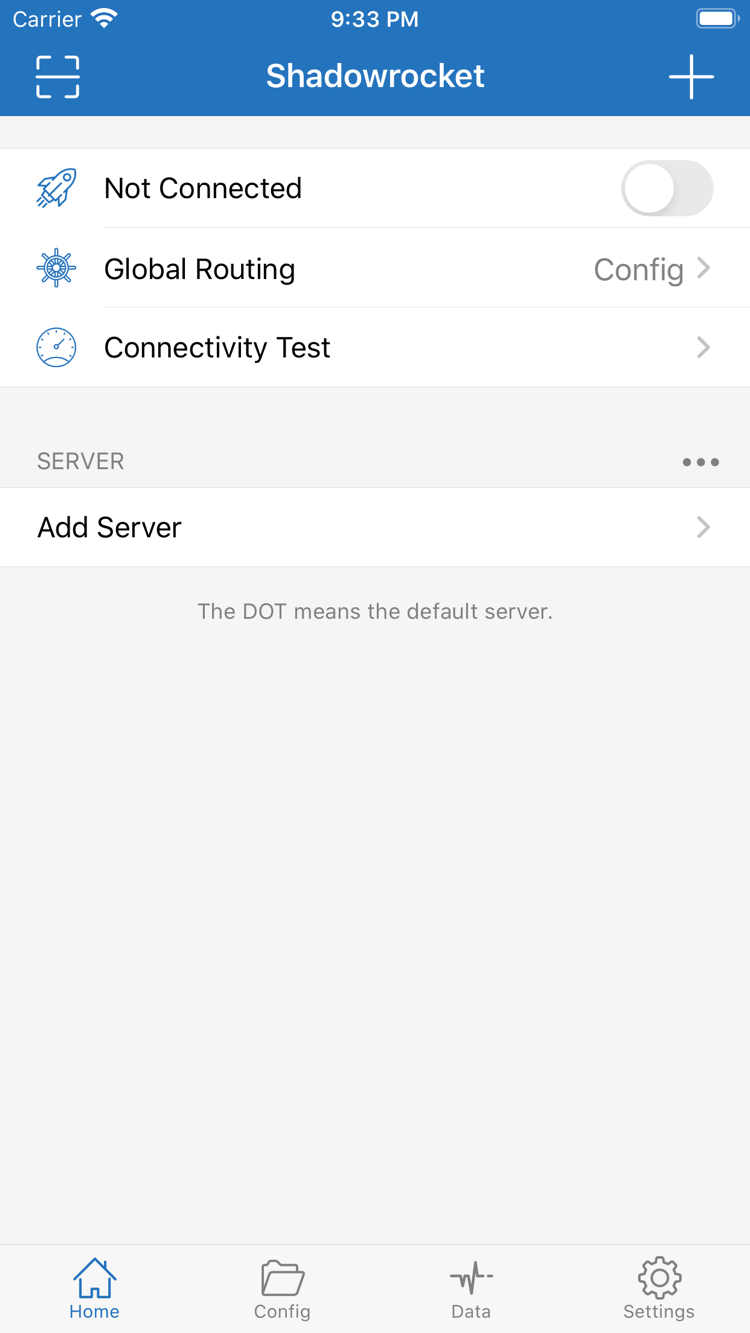
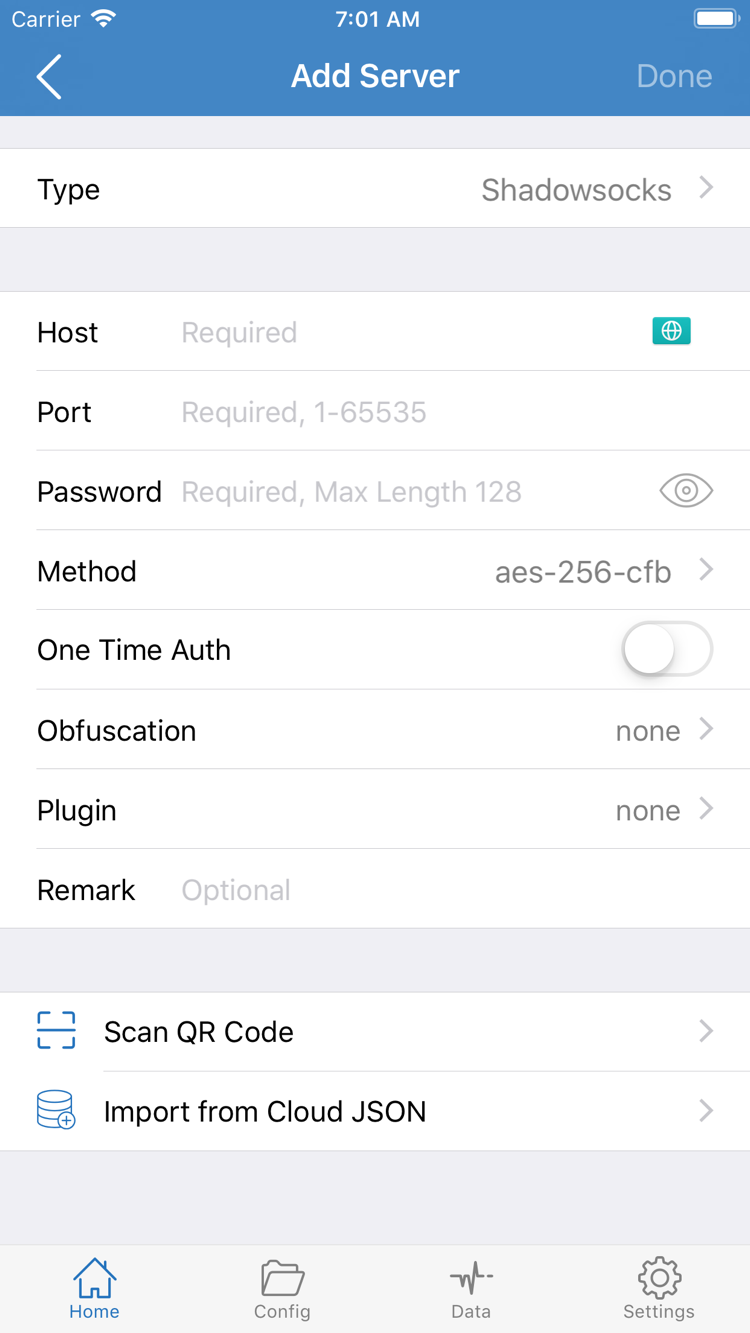
Check connection status on Home. If you already have the details for a single server, open Add Server from Home. The screenshots below help locate controls; you do not need to copy their status or field values.
Home: check connection status and Global Routing at the top; find Add Server in the SERVER group.Add Server: choose Type first, then fill in the relevant fields using your existing server details. Scan QR Code and Import from Cloud JSON are also available below.
05 Reinstall purchased apps
Move to a new device, reinstall and restore configuration
Restoring the app does not restore its configuration. First retrieve the app with the original account, or download an installer for the target device, then import your existing subscription, server details or saved Config.
iPhone / iPad: retrieve from purchases
Open the App Store on the new device and tap the account avatar in the upper-right corner. Confirm that Media & Purchases uses the Apple ID you originally bought the app with.
Open Purchased under your account. Some system versions first show Apps or My Apps. Search for Shadowrocket in the relevant list, then tap the download icon.
After installation, return to Home and check the server list. If your previous details are not there, reimport them using the user guide. If you use custom rules, open Config and check the selected file.
One purchase is shared between iPhone and iPad using the same Apple ID. You do not need to pay again to retrieve a purchased app. If the page still shows a purchase button, check the purchase account and store region before proceeding; do not place a duplicate order.
Mac / Windows / Android / Linux: choose an installer again
When switching computers, phones or tablets, choose an installer for the new device from Download for all platforms. You do not need to reuse the file from the old device. A different processor architecture or Linux distribution may require a different package format.
If you can still open the old device, note the Global Routing mode and Config in use, then save any configuration you still need. Server details and subscription URLs may contain credentials; keep them somewhere you control when transferring them, and do not post them in public comments or screenshots.
First confirm that the client opens on the new device, then import your details and test the connection. A test result on the old device does not guarantee that the same settings will work on the new one; in particular, check that you selected the intended configuration file.
06 Pricing
Two price tiers: app and network access are separate
iPhone / iPad
The US App Store price is $2.99 as a one-time purchase, with no monthly app fee. Other storefronts show local currency; check your store page before paying.
Mac / Windows / Android / Linux
The app is free to download from this site. Both Apple silicon and Intel versions of the Mac app are in this tier; choose the one that matches your hardware.
Updating the client and updating a Subscribe configuration are also separate tasks. Update the iPhone / iPad app through the App Store; for other platforms, download the installer for the target device again from this site. If only the contents of an existing subscription have changed, first check the subscription import and update guide; reinstalling the client is not necessary.
07 Download help
Download and installation FAQ
Can I use Shadowrocket on a computer or Android phone?
Yes. The Mac, Windows, Android and Linux versions are free; choose the package for your device architecture on this site. The iPhone / iPad app costs $2.99 as a one-time App Store purchase. After installation, import your existing subscription or server details.
Which Mac version should I choose: Apple silicon or Intel?
Open About This Mac from the Apple menu. Choose the Apple silicon version if Chip shows Apple silicon; choose Intel if Processor shows Intel. Use the hardware information shown there, not the Mac model name or purchase year.
What should I do if Windows says “Windows protected your PC”?
First confirm that this is the 64-bit installer provided on this page. After verifying its source, choose More info → Run anyway if your device policy allows it and the option is available. If Windows explicitly reports malware or your administrator blocks execution, stop the installation and do not disable protection.
What should I check if Shadowrocket does not appear in the App Store?
Check the country or region for the Apple ID used under Media & Purchases, then open the product page from this site to check availability. The app is not available in the mainland China App Store. Changing your device language does not change the store linked to your account.
Do I need to buy it again after switching to a new iPhone or iPad?
If the same Apple ID was used for the purchase, find the app in your App Store purchase history; you do not need to buy it again. The iPhone / iPad app costs $2.99 as a one-time App Store purchase; Mac / Windows / Android / Linux versions are free. Reinstalling the app does not restore your previous configuration.
Can I install Shadowrocket on an iPad?
Yes. iPad and iPhone use the same App Store product page linked here. Check the product page for system requirements. If you bought it on an iPhone with the same Apple ID, find it in your iPad purchase history.