Official Manual · First-Time Setup
Shadowrocket Setup Guide
Import server details, choose a routing mode, and verify the connection on iPhone or iPad. For your first setup, get one existing server working before checking specific rules.
Add a server or subscription in Add Server
First identify what details you have: a subscription link imports a group of servers that you can update later; details for a single server usually describe one entry and include a protocol, address, port, and authentication parameters. Follow either path; there is no need to enter the same link in both places.
Have a subscription link? Choose Subscribe
- Copy the complete subscription link from your service provider. Do not copy an account page address or only the beginning of the link; parameters required by the subscription may appear after the question mark.
- Open Home, tap Add Server, and select Subscribe under Type. Paste the link into the subscription address field and check that there are no extra spaces at either end. If there is a notes field, add a name that helps you identify its source.
- Save and return to Home. Expand the relevant subscription group and confirm that selectable servers appear under SERVER. Seeing a group name does not mean the server list has loaded; if the group is still empty after the initial import, update the subscription and check for entries again.
Have details for one server? Fill in the fields for its protocol
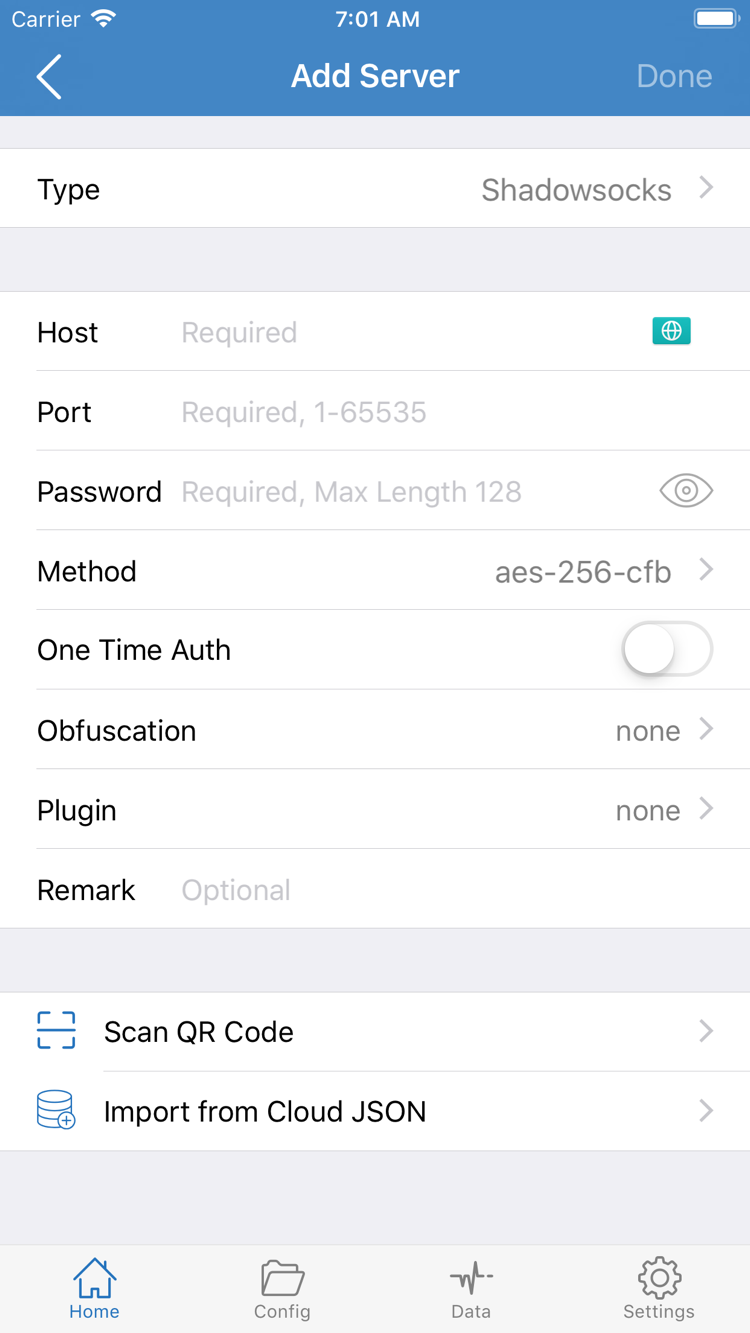
Open Add Server from Home, select the protocol specified in your details under Type, and fill in the relevant fields. Enter the server address in Host and the port in Port; keep them separate and do not paste an entire share link into Host. Fields such as Password and Method depend on the protocol you select. Do not apply fields shown for one protocol to another.
If your service provider gave you a QR code for a single server, you can scan it with Scan QR Code in Add Server. Check Type, Host, and Port after scanning, then save. QR codes and share links may contain authentication details, so do not post them in public discussions.
Choose a routing mode in Global Routing
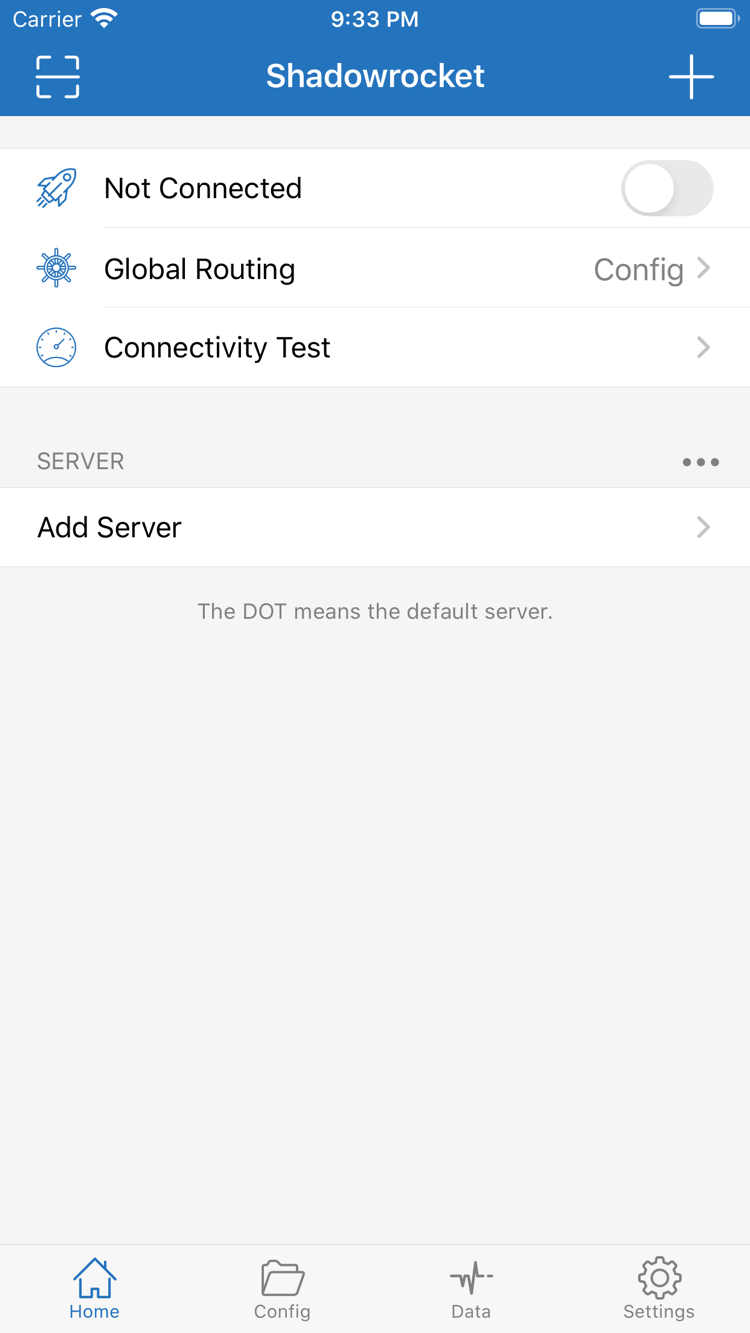
Return to Home and tap Global Routing. This setting determines how traffic is handled. Selecting a server under SERVER only chooses which server proxy requests can use; it does not automatically switch the routing mode to Proxy.
- Config
- Matches requests against the currently enabled configuration file. Choose this when you have a configuration file you want to use and want some requests to go through a proxy while others connect directly.
- Proxy
- Routes traffic handled by the client through the proxy instead of deciding request by request using the configuration file's routing rules. You can use it briefly as a comparison when checking whether a server can handle proxy requests.
- Direct
- Connects traffic handled by the client directly to its destination, without using the selected proxy server. Use it for comparison: if the same address also fails to load over a direct connection, that alone does not show that the proxy server is at fault.
Check the configuration file before choosing Config
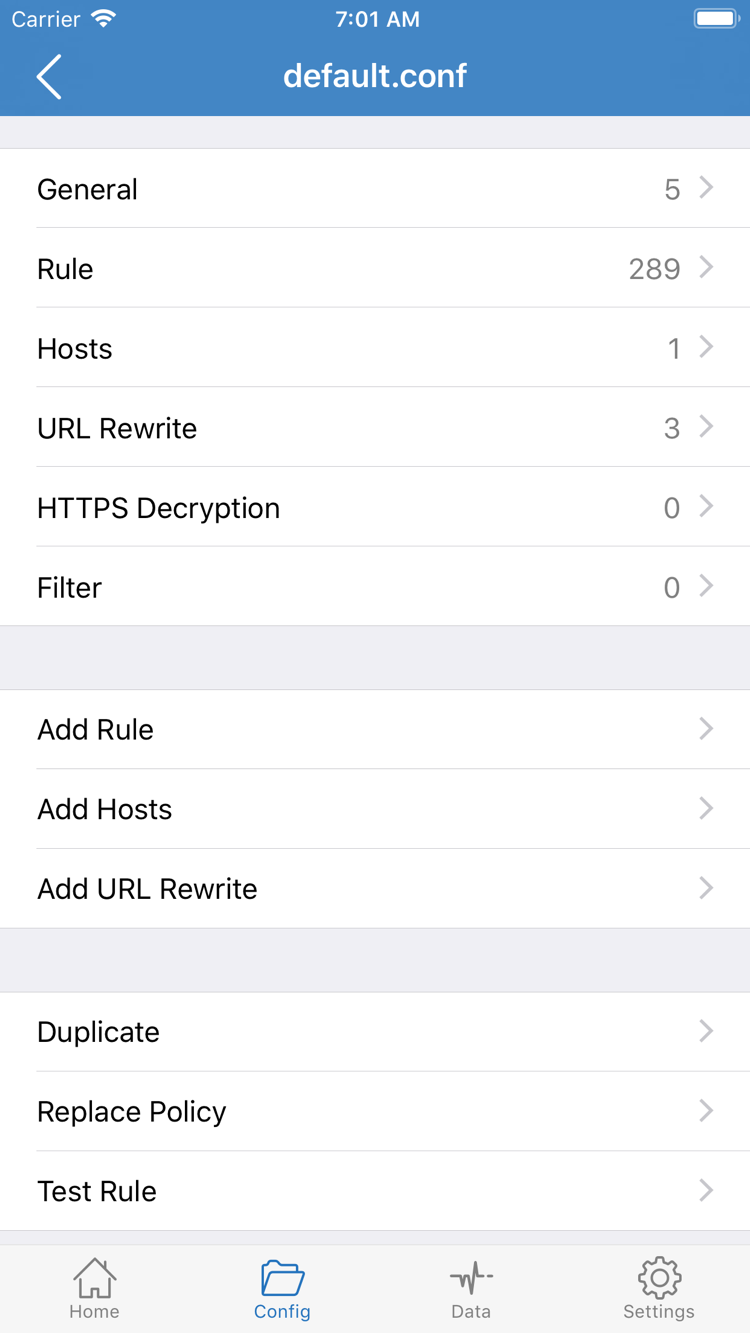
The Config tab at the bottom lets you view and manage configuration files; Config in Global Routing means using a configuration file for routing. Check the configuration file list to confirm the expected file is enabled, then return to Home and make sure Global Routing shows Config. Opening a file's edit screen does not enable it.
In a configuration file, the order of Rule matching affects the result: if a domain matches both a broad rule higher up and a specific rule lower down, the first matching rule determines where it goes. FINAL handles requests that did not match earlier rules. You do not need to edit Rule during the initial connection; note the configuration file and mode you use so you can compare them during verification.
After choosing a mode, return to Home and check that the option shown on the Global Routing row matches your selection. If you do not have a specific routing goal yet, use Proxy briefly to test one server, then return to Config to check the rules.
Turn on the connection from Home
- Select a server. Tap a recently imported entry under SERVER on Home and check that the selection indicator is on the intended entry. If several entries have similar names, check the group and notes so you do not test a different server by mistake.
- Turn on the switch at the top. The first time you do this, iPhone or iPad may show a system prompt asking permission for Shadowrocket to add a VPN configuration. Confirm that the prompt is from the system, then follow its instructions. If device authentication is required, complete it only in the system interface. If you previously canceled, return to Home and turn on the switch again.
- Wait for the status to update. When the status at the top changes from Not Connected to Connected, a connection has been established on the device. If the switch turns off again, the status does not change, or a system prompt says that management policies restrict the action, start with step five rather than repeatedly importing the same details.
Connected describes the connection status on this device. It does not mean every request passes through the server or that every destination will load. For example, the status can still show Connected while Global Routing is set to Direct, in which case requests are handled directly. Use the next step to check whether access is working.
If the device usually connects to another VPN automatically, first check which one the system is using. Pause other VPNs for comparison only if you manage the device and those connections are not required by your work or school. Do not remove configurations that do not belong to you.
Verify with Connectivity Test and a webpage
Check two separate things: first, whether the server responds under the current test conditions; then, whether a browser can access the address you care about. Passing the first test does not guarantee the second. A webpage loading successfully also does not by itself show whether the request used a proxy or a direct connection.
- Note the conditions for this test. On Home, check the status at the top, the selected server, and the Global Routing mode. When retesting, use the same Wi-Fi or cellular network if possible; changing networks and servers can both change the result, so avoid changing them at the same time.
- Run Connectivity Test. Tap Connectivity Test on Home, wait for the results to update, and check the result for the selected server. If it times out, note whether only this entry failed or other existing entries behave the same way. The response time reflects only the current test conditions; it is not a measure of webpage loading speed.
- Request a known working address again. Switch to your browser and open a regular webpage you can usually access in a new tab. You can also refresh the page and open another page on the same site to avoid mistaking previously loaded content for a successful new request. If an error appears, note whether the host cannot be found, the connection times out, or the page starts loading and then stops.
- Compare modes only when you need to verify routing. Keep the network, server, and destination address unchanged. Select Proxy and Direct on Home in turn and request the same address again, then return to Config and retest. If only Config behaves differently, first check the active configuration file and the Rule that actually matched. Restore the mode you want to use after testing.
Find the problem by failure stage
First identify whether no server entry was imported, the connection was not established, or access fails despite being connected. Start with the earliest failure and retest after changing one thing. Reinstalling the client, changing subscriptions, and editing configuration all at once makes it difficult to identify the cause, even if the issue clears.
Subscription saved, but no server appears under SERVER
First make sure the group is expanded and that a regular webpage loads on the current network. Check whether the subscription address was cut off or whether you pasted an account page address instead. If an update failed and the old list is still there, existing entries only show that the subscription was imported before. Keep them for now, confirm that the new address can be read, then replace the list; do not delete a group that still works as your first step.
Still Not Connected after turning on the switch
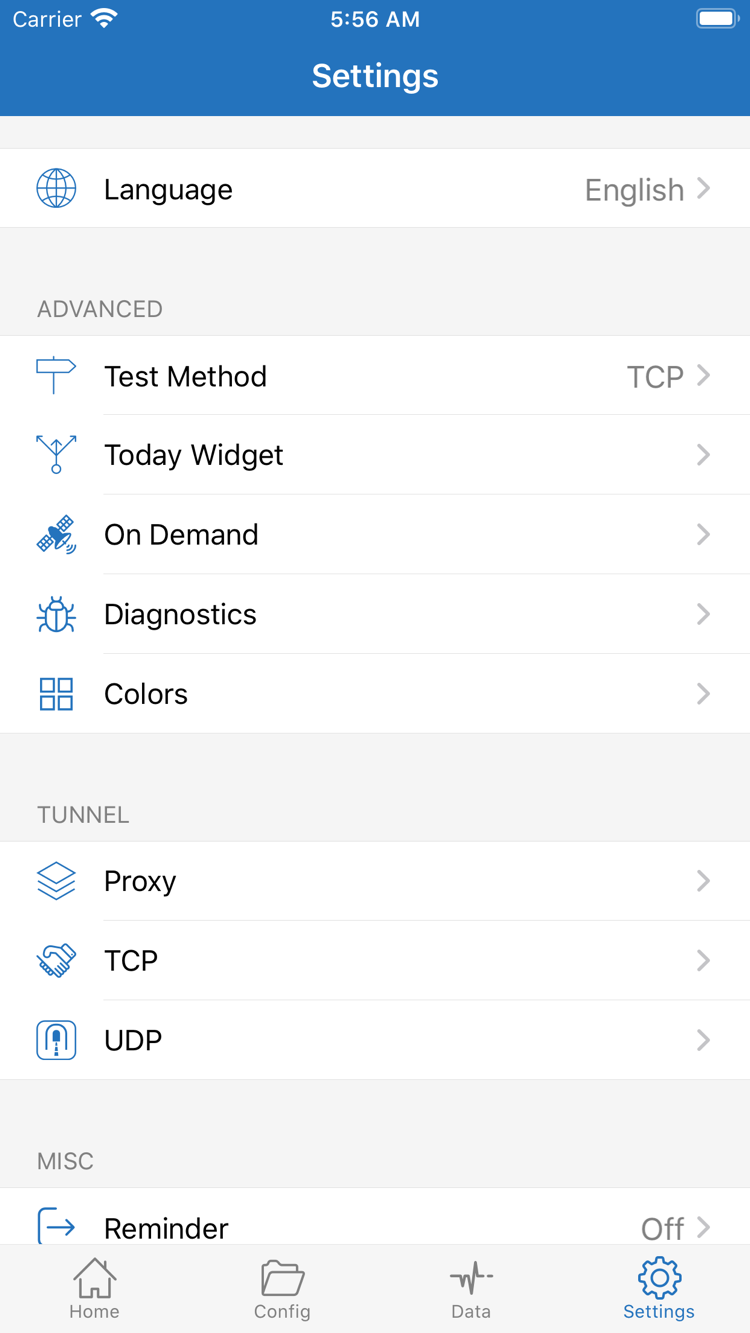
Return to Home and check that a server is selected. Also check whether you canceled the system prompt when adding the VPN configuration for the first time. If another VPN is running on the system, follow step three to identify the current connection. If it reconnects automatically after you disconnect it manually, check whether On Demand is triggering under certain conditions in Settings. On a personal device where you can change this setting, turn off On Demand temporarily and compare with a manual connection.
Connected, but the test times out or webpages do not load
Compare with Direct first. If Direct also cannot load several webpages that usually work, check whether the current network requires sign-in or whether the device can access the internet normally. If Direct works but Proxy fails, return to the relevant entry in Add Server and check the protocol, address, port, and authentication parameters. Keep fields at their original values unless your service provider's details explicitly say to change them.
A domain behaves differently only in Config mode
Check which file is enabled in Config, then see whether a broader match appears earlier in Rule. If the error says the host cannot be found, first note the domain and time, then check the DNS settings in the active configuration rather than changing every DNS setting immediately. For rule and DNS details, see the configuration manual.
If you still need to troubleshoot, note the step where the failure occurred, the network type, the Global Routing option, and the error message, then continue with the relevant section in Troubleshooting. Before sharing screenshots or diagnostic records, obscure subscription links, QR codes, server authentication details, and other sensitive information.